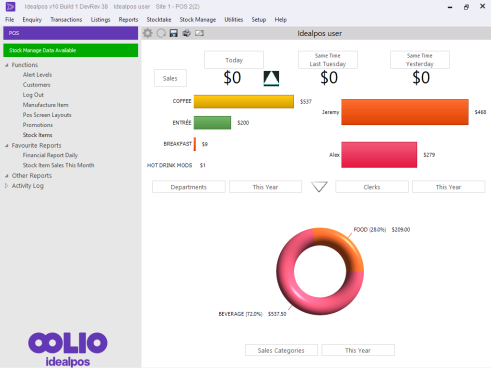
When the Pocket Stock app has been used to request labels and the data has been uploaded to Idealpos, it will be available for processing.
Idealpos will display a message on the Back Office that there is data available.
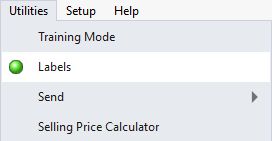
To access the Stock Labels data uploaded by Pocket Stock, click on the "Utilities" menu at the top of the Back Office screen.
The type of data that is available to process will be designated by an icon beside the menu option, in this case, Labels.
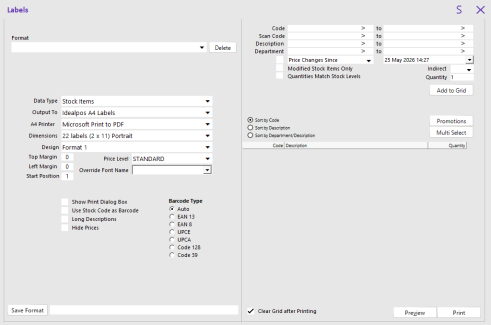
The Idealpos Labels window will open.
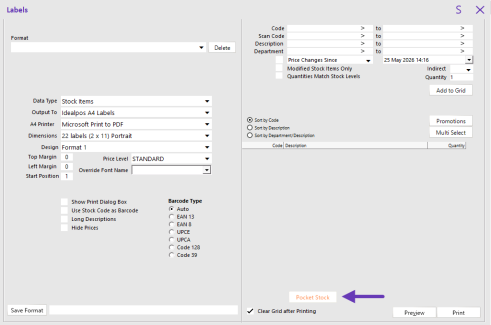
Press the "Pocket Stock" button at the bottom of the Labels window to access the Labels data sent from Pocket Stock.
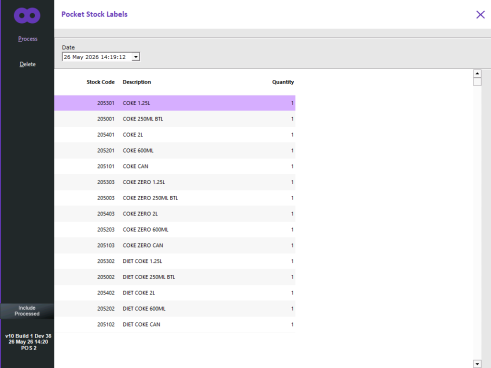
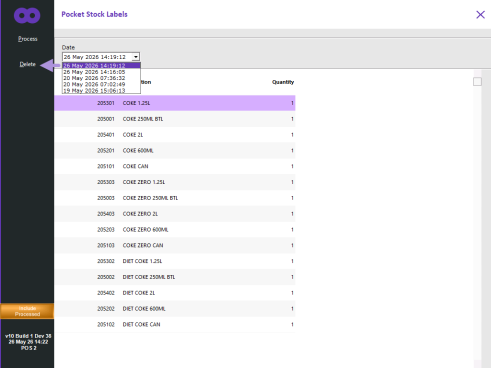
The Pocket Stock Labels window will appear with the Labels that were requested from Pocket Stock.
Each time a Pocket Stock device uploads Label data, the Label data will be grouped by the date/time which the data was uploaded.
To view the Label batches that are waiting for processing, select the Date dropdown box and a list of batches grouped by uploaded date/time will be displayed.
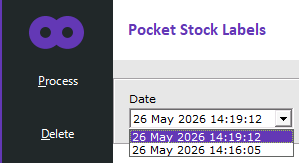
After selecting a batch, the list of Labels for the batch will be displayed in the Pocket Stock Labels window.
To Process the Labels for the currently selected batch, press the "Process" button on the top-left corner of the window.
If the currently selected Label batch is not required, the "Delete" button can be pressed on the top-left corner of the window; note that this will delete the current Label batch without processing.
Deleted batches cannot be recovered unless they still exist on the Pocket Stock devices in which case they can be re-uploaded from the Pocket Stock app.
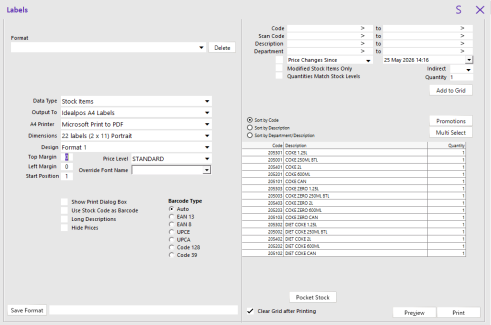
The Pocket Stock Labels will appear in the Idealpos Labels window; the Labels can now be Previewed or Printed as required via the Preview/Print button on the bottom-right corner.
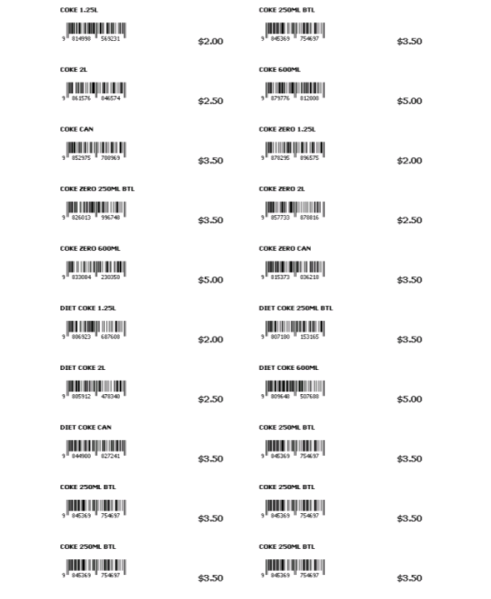
All Pocket Stock Label batches that have been processed by Idealpos will be kept in the Pocket Stock Labels function within Idealpos Labels until they're manually deleted.
To access previously processed Pocket Stock Label batches, go to: Back Office > Utilities > Labels > Pocket Stock Data > Enable the "Include Processed" button on the bottom-left corner of the window.
The Date dropdown box at the top of the window will include processed batches.
Previously Processed Label batches can be reprocessed again if required; select the Label batch from the Date dropdown box, then select the "Process" button on the top-left corner of the window.
Old Processed Label batches that are no longer required can be deleted.
To delete old batches, select the label batch from the Date dropdown box at the top of the window, then select the "Delete" button on the top-left corner of the window.
Idealpos will display a confirmation prompt when deleting a label batch.
Press "Yes" to proceed with the deletion.

The next time the Labels window is opened after all processed Pocket Stock label batches have been deleted (and there are no unprocessed Pocket Stock label batches), the "Pocket Stock" button will not appear at the bottom of the window.